
A common starting point is to create a few main folders on the main drive. These might cover broad areas such as documents, pictures, music, and downloads. Inside each of those, add narrower folders that match how the files actually get used. For instance, under pictures a person could have separate folders for family events, holiday trips, and scanned receipts. The key is to stop at a depth that still feels workable. Going more than three or four levels deep often leads to folders that are forgotten because reaching them takes too many clicks.
Building a Logical Folder Setup
Think about the order in which files are created. A simple yearly split works for many people. Inside a documents folder they might keep a 2022 folder, a 2023 folder, and so on. Each yearly folder then holds project folders or topic folders. One person keeps tax records this way: the year folder contains a subfolder named Taxes, and inside that sits the actual return and supporting scans. Another person stores recipes as plain text files grouped first by meal type and then by the month the recipe was last cooked. The structure only needs to match the way that person looks for things later.
Good Ways to Name Your Files
File names should describe the contents without needing to open the file. A name like March_utility_bill.pdf tells more than bill.pdf. Adding a date at the start or end helps when files are listed by name. Some people use YYYY-MM-DD because that order sorts correctly on most systems. Others add a short project code if the same type of file appears in different folders.
Avoid long strings of numbers or vague words such as final or revised. Those versions multiply quickly and create confusion later. When a file goes through several edits, a simple number at the end, such as draft_03, usually suffices. Keep the name short enough to read in a narrow window.
Using Search Tools and Metadata
Built-in search can locate files even when the folder layout is not perfect. Typing part of a name or a word inside the file often brings the right result within seconds. For pictures many programs let the user add tags such as location or names of people. These tags stay with the file when it is copied or moved. A tag like beach_2022 makes it possible to find every photo taken at that location without knowing which folder holds it. The same idea applies to documents: some word processors allow keywords to be stored in the file properties. Filling in those fields takes only a moment and can save time months later.
Handling Backups
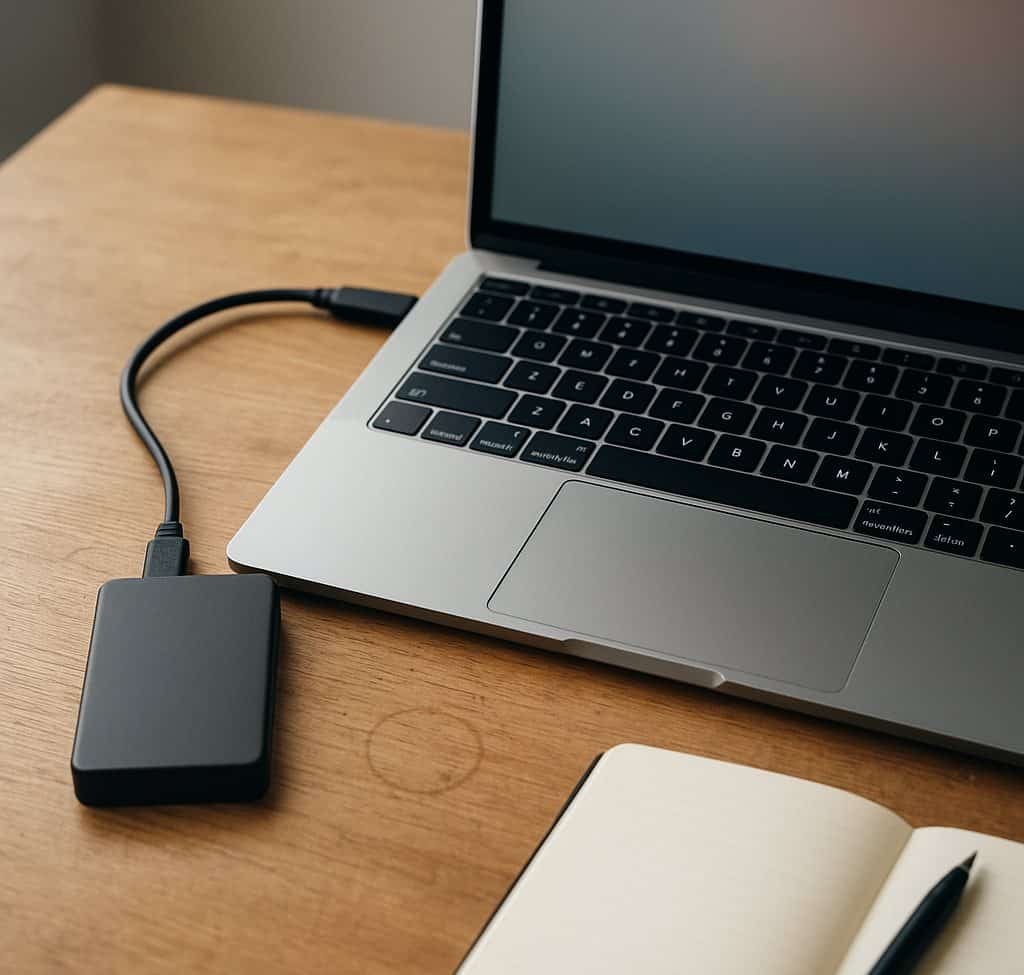
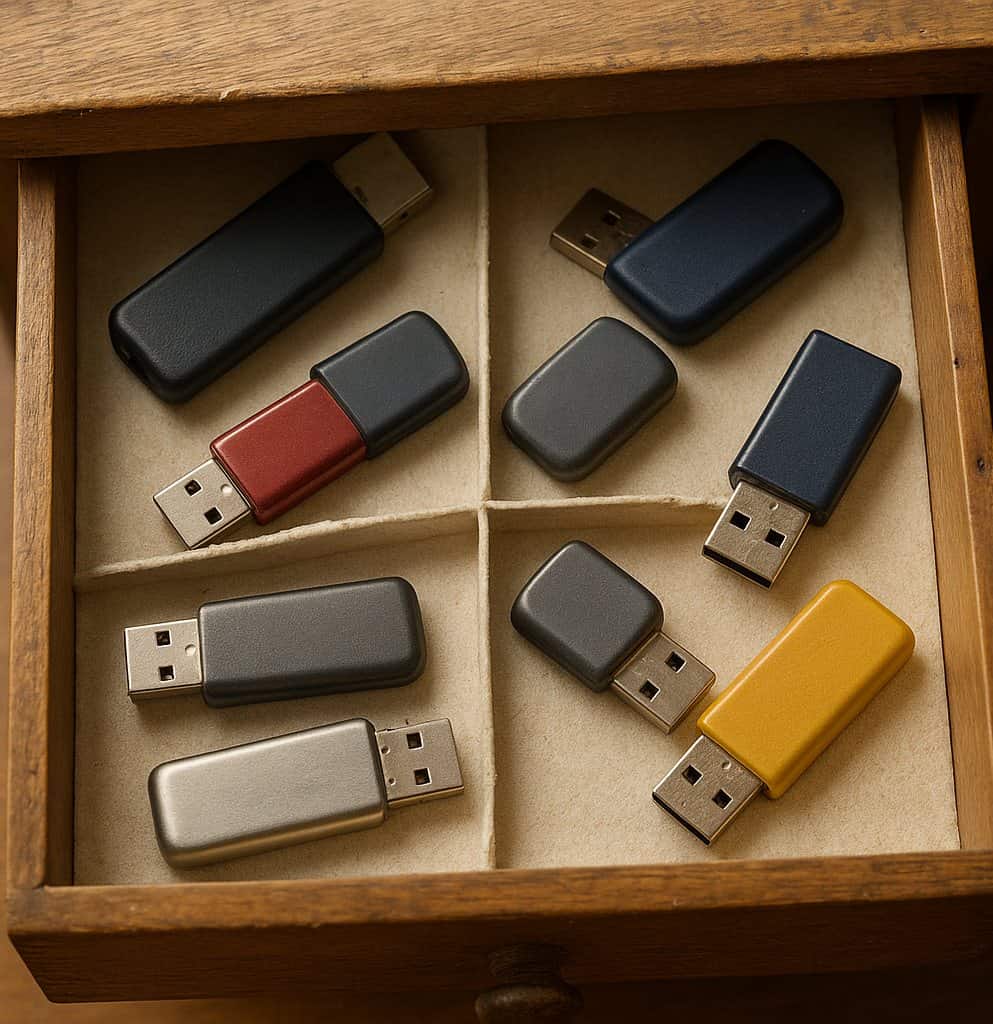
Copying important folders to an external drive once a week is a straightforward habit. The copy can be as simple as dragging the main folders onto the drive. Some users keep two external drives and rotate them so one stays off-site. Cloud storage works for smaller sets of files when the internet connection is reliable. The important step is to test the backup now and then by opening a copied file from the backup location. That check shows whether the copy actually opens and whether the folder structure copied over intact.
Sticking With the Plan Over Months and Years
New files arrive every day, so a short weekly pass through the download and documents folders keeps things from piling up. During that pass, files without clear homes can be renamed and moved. Once every few months it helps to look at the oldest folders and decide whether their contents still need to stay on the main drive. Some items can be moved to an archive drive or deleted if they are no longer needed.
A practical check is to try finding a file from last year using only the search box. If the search takes more than a minute, the name or folder placement may need adjustment. Small changes made at these intervals usually prevent the need for a full reorganization later.